Showing posts with label Power Automate. Show all posts

Aug 6, 2026

Cloud Flow to fetch Team Chat to Dataverse Entity

Among many ways we would integrate Teams with Dataverse, we can just fetch details directly from a Chat channel, using a Cloud Flow/ Power Automate. Suppose I have below TestABC channel created under Platform and Development as below.


I am triggering a Cloud Flow when a new message is added to the channel.


Then you can simply write to Dataverse table.

Anyway, I just did this to make sure there is no drama of directly triggering from a entry to a team and writting to entity. Obviously this is not much of a use. Perhaps we can filter inbetween to check if given keywords are present in subject or details of the channel enrtry and write them. 

There is an interesting collection of triggers for Teams which make much more sense in real world.


Nov 29, 2025

Send Email to a direct address in a Flow (without Account, Contact record)

When we work with Dataverse, we use Cloud Flows/ Power Automates to send Email nowadays. Usually, we send a emails to an address associated to a Contact, Account or few other specified entity types records. How about if we need to send an email to a outside Email address which is not associated to any record. It is possible to do as below.

We need three different components here in below sequence. As explained by respective names they are to Initiate, Update and sending the Email.


1) Initiate Email

    Just initiate a Email record using Add a new row action.

2) Update Email

   Then use a Update a row action to populate below details. While passing the already initiated email to Row Id, it is needed to pass same activity Id for bind details of email.     


3) Perform a bound action

    Now its a matter of Sending the email calling SendEmail action in Perform a bound action. 

Nov 22, 2025

A way to process more than 5000 records in Cloud Flow execution

If you need to process a large number of records, for example in Dataverse, what we really do is create a scheduled Cloud Flow/ Power Automate. If the process is complex, we can encapsulate the logic in a Custom API and call from Cloud Flow. 

To fetch the records to process, you need to use List Rows operation of Dataverse Connector which returns only 5000 records as once. This is a limitation. In order to overcome this, we need to do below trick.

1) Introduce a Boolean Variable
2) Create a Do Until loop to run until this variable is False
3) Inside the Loop
    - Create List Rows operation to retrieve records
    - Set Variable to True as far as List Rows returns none zero records
4) Add a For Each control to call a Bound Operation against each record in the batch.


Caution

1) List Rows fetch should contains a specific condition for the records being fetched. (perhaps a flag)
2) Within the Custom API it is important to change this flag value once its processed either its successful or failure. 

This way, any record, once processed is omitted in next fetch resulting only one processing per a given record. Otherwise, this will go to an infinite loop which could cause issues. 

Anyway, Cloud flows can handle badly designed loops and it will anyway stop at default maximum number of loops.. still this should be avoided.

Nov 17, 2023

Write a Custom API call from Clout Flow

In a previous article, we check how we Write a Custom API and calling it from classic workflow. It worked well, yet we encountered some hiccups in deployment. Actually, recommended way is to call it from a Cloud Flow than a workflow.

Lets check that using a simple sample Cloud Flow. Implementation of the Custom API remains the same. Please refer that part from previous post. 

Lets do the calling part from a Cloud Flow. I would select a flow that triggered on demand from the custom entity (in our case so_office).

First I am selecting a task to trigger when selecting a record from Office where I need to select the environment along with entity.


Then I need to select Perform a bound action from list of actions of Microsoft Dataverse.


Now interestingly, we can see our Custom API within the Action lists shown, which we would select as below. Then we need to pass the row Id passed by trigger from the first action.


Now if you go open and office record, you are able to runt he Flow on Demand as any other workflow is triggered. 


Here I demonstrated only simple on demand flow for ease of demonstration, but what we need to learn is, in any flow we can call out Custom API using Performa Bound Action of Microsoft Dataverse. Most importantly, this is the recommended way than calling from a workflow. 

Sep 21, 2023

Check current environment inside Flow

It can be useful to understand what environment flow is running on. This enables us perform separate action or use separate values based on the environment. Lets see how to do that.

Component we use here is Get Environment as Admin of Power Platform for Admins.


This lists down available environments along with option to give custom value which we select here. 


Then we need to select below formula.

workflow()['tags']['environmentName']


When we do any action, now we are allowed to select Display Name from same component and it will return the respective environment name.


We can use Compose component to check if you get the Environment name correctly.


Usually we use IF condition to perform separate action or use separate values by environment. In below example, IF condition is used to set company Email address only if the Environment is UAT otherwise use personal Email address.
 
if(equals(outputs('Get Environement as Admin')?['body/properties/displayName'],'UAT'),'info@abc.com','sumedha@abc.com')

Hope this helps.

Sep 20, 2022

Calling a Child Flow

When we worked with old school Workflows, we usually use child workflows to keep the logic in one central point if need to be trigger from different situations. I glad to see same approach is possible in modern flows/ Power Automate.

Below are the simple steps to follow;

1. Create the child flow first and make sure it is On.

2. Child Flow should be a Instant type one

3.So it will start with a manual trigger with what ever the parameter we need to pass value for.


4. Importantly, it is needed to end the child flow in style, by passing back the response to parent Flow. It can be just a simple success message.


5. Now we are good to call the child flow. When you do, it presented with Parameters, so easily values can be passed. 


This sounds simple.. but learning fundamentals is not a bad thing.

Feb 19, 2022

Qualify lead via a Power Automate/ Flow

 This can be done with 4 steps as illustrated below;

1. Retrieve Lead Id from Power App (In my case we trigger this from a Canvas App – you can trigger from many other forms)

2. Obtain the Access Token. (Application needs to have registered in Azure, where you get Application Id and Secrets required for this step)

3. Initialize a Variable with Access Token retrieved in previous step

4. Execute the Qualify Lead through API.

Let’s see details of each step;

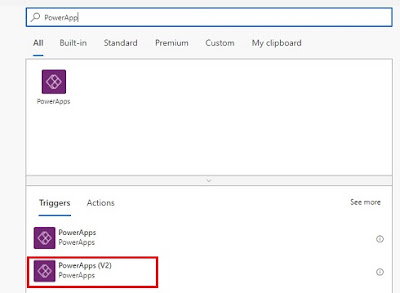
1. Select Power Apps (V2) as the trigger. When opening the new Power Automate, I would skip the wizard so I get much flexibility in selecting my trigger through below window. Then I can add my only Parameter, which is Lead Id.


2. Below is the configuration details pass into Http Request in this step. Please notice some details are from App registration.

3. If you pass the correct details in previous step, it will produce the Access Token, which we read into a variable in this step.

4. Now it’s a matter of executing the Lead Qualify message through API. For this also, we use Http Request. Please notice how we pass the Token and Lead Id. I am only change the state as Lead Qualification, but configuration can be changed to create Contact/Account easily (Check Body). 

Now it’s a matter of calling the Power Automate/ Flow from Power App.

Reference;

https://www.inogic.com/blog/2019/05/qualify-lead-in-dynamics-365-through-the-canvas-app-with-microsoft-flow/

May 15, 2020

Power Automate - Loop through a list of records

Unarguably, It is necessary to learn how to use Power Automate/ Flow instead of Workflows. To be honest, I am sceptical on replacing all the complex workflows we have been developing for many years. In my mind, I try to figure out different approaches to address different requirements. This is the first post from a series I am planning to illustrate what I found. This shows how to loop through a list of records and perform the same action for each.

In my example, I have only three steps as shown below.


I am triggering for any update happen for Account record. This is simple.


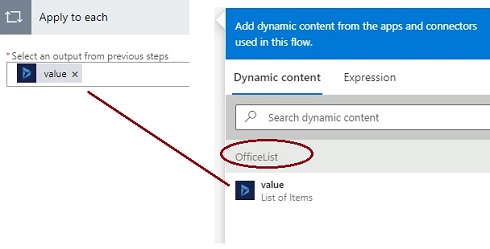
Here I am reading a set of records from an entity called Office using a control called List Records (which I rename as OfficeList). One Account can have multiple Offices. Office entity have a lookup field called Main Account (su_mainaccount). Here you can notice how Account Id from triggering step being passed to map with Main Account, so related Office records would be returned.


Now I am using Apply to each control and most importantly I am passing List of records (type of Office) returned from  previous action.


Now, inside the Apply to each control I am creating a Task. In fact, we create task for each record in the list.


Here is one such task being created. Circled text shows the Name of the Office record, where I have passed as a variable in above control. So each office will get their respective names in it.


Hope this helps.