Showing posts with label Dynamics 365. Show all posts

Sep 12, 2025

Attach PDF file programmatically to Email and send

Let's see how PDF file is attached to an Email and sending programmatically. Lets see why this is important.

1) Email Templates cannot be created with an attachment. (Ironically!)
2) If we attach programmatically we can change the attachment based on logic if required.

In Summery, we can initiate Email in Draft state, then attach the PDF and then send.

Initiation and sending the e-mail part is explained in Programmatically create a draft Email using Email Template (C#).

Lets see the code

// Initiate Email in Draft state

// Create Attachment
byte[] embededPdf = LoadEmbeddedPdf("PluginProject.Resources.ApplicationForm.pdf")
Guid attachmentId = CreatePdfAttchment(OrgSvc,emailId, Convert.ToBase64String(embededPdf));

// Send Email

// Methods to use
private byte[] LoadEmbeddedPdf(string resourceName)
{
    var assembly = Assembly.GetExecutingAssembly(); 
    using (Stream stream = assembly.GetManifestResourceStream(resourceName))
    {
        if (stream == null)
            throw new FileNotFoundException("Embedded PDF file not found: " + resourceName);
        using (MemoryStream ms = new MemoryStream())
        {
            stream.CopyTo(ms);
            return ms.ToArray();
        }
    }
}

public Guid CreatePdfAttchment(IOrganizationService OrgSvc, Guid emailId, string base64Pdf)
{
    Entity attachment = new Entity("activitymimeattachment");
    attachment["subject"] = "Application Form";
    attachment["filename"] = "ApplicationForm.pdf";
    attachment["mimetype"] = "application/pdf";
    attachment["body"] = base64Pdf;
    attachment["attachmentnumber"] = 1;
    attachment["objectid"] = new EntityReference("email", emailId);
    attachment["objecttypecode"] = "email";
    return OrgSvc.Create(attachment);
}

There are two important things here;

1. PDF is saved within the Project and path needs to be passed correctly in below standard.

<Project Namespace><Folder><filename>.pdf

So you will realize when I pass PluginProject.Resources.ApplicationForm.pdf, my project namespace is  PluginProject, folder name is Resources and pdf file name is ApplicationForm.pdf.

2. Go to properties of the PDF file (In VS) and do below setting.


Sep 16, 2022

Run an Update Plug-ins On Demand

One of the main questions asked in D365/ Dataverse jobs interviews, event today,  is differences of Plug-ins and Workflows. I used to say Plugins cannot be executed on Demand, but workflows. Its not wrong, but there is one indirect way of executing Update plugins on Demand. That's through bulk data updated.

Within the update options of the tool, you will find an option called Touch which really doesn't update the field, but it triggers other business logic bind to that operation.  (How it is done? I don't know!)


Anyway, this is an interesting option. Below are a couple of things to note;

1. This operation doesn't add anything to Audit.

2. One limitation is if there are many custom business logics (More than one Plug-ins, WFs), they all will get executed. No way of selecting what you want.

Sep 2, 2022

Adding CRUD operations to a List in a Portal

Here I am discussing one of the main customizations you may need when developing a Power Apps Portal. That is adding CRUD (Create, Read, Update and Delete) operation on items in a list. 

There are two pre-requisites to proceed with this exercise;

1. A list should have configured already.

2. Below 2 entries should have added to the Site Settings entity that gives permission to nominated entity (in my case so_office) to be accessed through API.


All my JS codes will go in Options tab of the list.


Consider below JS, where I have embedded some extra lines to a standard code of doing something for each item in the list.

Block 1 - Change some fonts styles through CSS

Block 2 - Give different color for the lines where No of Clients are greater than 100

Block 3 - Call CRUD functions by introducing 4 new buttons.

$(document).ready(function (){
$(".entitylist.entity-grid").on("loaded", function () {
$(this).children(".view-grid").find("tr").each(function (){
// do something with each row

// Block 1
$(this).css("font-family","Sans-serif");
$(this).css("font-size","10px");

// Block 2
if ($(this).find('[data-attribute="so_noofclient"]').attr("data-value")) {
    var noOfclients = $(this).find('[data-attribute="so_noofclient"]').attr("data-value");   
    if (noOfclients >100) {
    $(this).css("background-color", "#E49C9C");
    }
    else {
    $(this).css("background-color", "#F6F5F5");
    }
}

// Block 3
   if ($(this).closest('tr').attr("data-id") != null)
   {
     var recId = $(this).closest('tr').attr("data-id");   
     var nameCol = $(this).find('[data-attribute="so_name"]');
         nameCol.append('&nbsp;&nbsp;<input type="button" value="C" onclick="CreateOffice();" style="color:orange; border-style: none;" />');
	 nameCol.append('&nbsp;&nbsp;<input type="button" value="R" onclick="RetrieveOffice(\''+ recId +'\');" style="color:orange; border-style: none;" />');
	 nameCol.append('&nbsp;&nbsp;<input type="button" value="U" onclick="UpdateOffice(\''+ recId +'\');" style="color:orange; border-style: none;" />');
	 nameCol.append('&nbsp;&nbsp;<input type="button" value="D" onclick="DeleteOffice(\''+ recId +'\');" style="color:orange; border-style: none;" />');
   }

});
});
}); 

Above steps resulted below. You may notice four buttons to trigger the operations.


Now we have below four functions those do the respective operations.

function CreateOffice(RecId)
{
    alert("Creating Office..");
    webapi.safeAjax({
        type: "POST",
        url: "/_api/so_offices",
        contentType: "application/json",
        data: JSON.stringify({
        "so_name": "Created Office"
        }),
        success: function (res, status, xhr) {
        console.log("entityID: "+ xhr.getResponseHeader("entityid"));
        document.location.reload(true);
        }
    });
}

function RetrieveOffice(RecId)
{
    alert("Retrieving.." + RecId);
    webapi.safeAjax({
	   type: "GET",
	   //url: "/_api/so_offices?$select=so_type,so_revenue",
           url: "/_api/so_offices("+ RecId +")?$select=so_type,so_revenue", 
		contentType: "application/json",
		success: function (res) {
			console.log(res);
            //alert(res.value[0].so_revenue);
            alert("Type :" + res.so_revenue);
		}
	});
}

function UpdateOffice(RecId)
{
    alert("Updating Office..XX" + RecId);
    webapi.safeAjax({
        type: "PATCH",
        url: "/_api/so_offices("+ RecId +")",
        contentType: "application/json",
        data: JSON.stringify({
        "so_name": "Office Updated"
        }),
        success: function (res) {
        console.log(res);
        document.location.reload(true);
        }
    });
}

function DeleteOffice(RecId)
{
    alert("Deleting Office.." + RecId);
    webapi.safeAjax({
        type: "DELETE",
        url: "/_api/so_offices("+ RecId +")",
        contentType: "application/json",
        success: function (res) {
        console.log(res);
        document.location.reload(true);
        }
    });
}

None of the above will work unless we add below Wrapper AJAX function. So added this as well.

(function(webapi, $){
		function safeAjax(ajaxOptions) {
			var deferredAjax = $.Deferred();
	
			shell.getTokenDeferred().done(function (token) {
				// add headers for AJAX
				if (!ajaxOptions.headers) {
					$.extend(ajaxOptions, {
						headers: {
							"__RequestVerificationToken": token
						}
					}); 
				} else {
					ajaxOptions.headers["__RequestVerificationToken"] = token;
				}
				$.ajax(ajaxOptions)
					.done(function(data, textStatus, jqXHR) {
						validateLoginSession(data, textStatus, jqXHR, deferredAjax.resolve);
					}).fail(deferredAjax.reject); //AJAX
			}).fail(function () {
				deferredAjax.rejectWith(this, arguments); // on token failure pass the token AJAX and args
			});
	
			return deferredAjax.promise();	
		}
		webapi.safeAjax = safeAjax;
	})(window.webapi = window.webapi || {}, jQuery)

Hope this code snippet helps!

Aug 16, 2022

Retrieve instance URL from Custom Workflow Activity

When this requirement arises, I though it should be a matter of reading it from context or so on. Anyway, then I realized it’s not available and no straightforward way of doing it. So I would suggest below two ways to do that based on your circumstance. 

If your system has a separate entity for configuration data, like key value pairs, its best to store there. Advantage is this entry could be accessed from many other areas as needed. Since its store as data, deployments don’t override. 

If you really want to retrieve dynamically, there is one other way.

IWorkflowContext context = ExecutionContext.GetExtension<IWorkflowContext>();
context.OrganizationName

This attribute gives you the unique name of the instance. 

While this is unique to instance, you are able to write a case statement etc. to retrieve the correct URL. This is good because your system will switch dynamically to correct URL but you are keeping URLs in the code itself. This means if you add new environment you need to modify the code and re-deploy the assembly.

Aug 9, 2022

How to track the changes done for a Workflow

There are two parts to the question. If you have written Custom workflow Activities, obviously you have written in Visual Studio (Or similar Dev tool) and may have stored in a repository. In fact, you are all good to track back what changes are made by developers in different occasions. 

Tricky part comes next: How to track down the changes done to a Workflow through the OOB workflow template. That’s adding/ removing different actions such as Create, Update etc. Unfortunately, there is no proper method. 

Anyway, there is a little trick. If Workflow was commissioned to the system for a while (Async or real time), chances are there could be sessions those failed. Failed sessions are always kept associated to the workflow. 

Now if you check an old failed session, you will be able to see all the steps existed in the workflow at that time. This is not a perfect solution, but I managed to explain an issue in one of my projects today by doing this to prove someone has removed an essential step. Unless this method, no one would be able to explain.

Thought of sharing since this could help someone!

Feb 19, 2022

Qualify lead via a Power Automate/ Flow

 This can be done with 4 steps as illustrated below;

1. Retrieve Lead Id from Power App (In my case we trigger this from a Canvas App – you can trigger from many other forms)

2. Obtain the Access Token. (Application needs to have registered in Azure, where you get Application Id and Secrets required for this step)

3. Initialize a Variable with Access Token retrieved in previous step

4. Execute the Qualify Lead through API.

Let’s see details of each step;

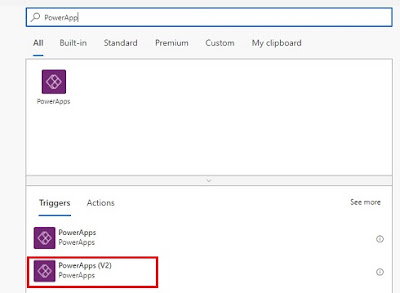
1. Select Power Apps (V2) as the trigger. When opening the new Power Automate, I would skip the wizard so I get much flexibility in selecting my trigger through below window. Then I can add my only Parameter, which is Lead Id.


2. Below is the configuration details pass into Http Request in this step. Please notice some details are from App registration.

3. If you pass the correct details in previous step, it will produce the Access Token, which we read into a variable in this step.

4. Now it’s a matter of executing the Lead Qualify message through API. For this also, we use Http Request. Please notice how we pass the Token and Lead Id. I am only change the state as Lead Qualification, but configuration can be changed to create Contact/Account easily (Check Body). 

Now it’s a matter of calling the Power Automate/ Flow from Power App.

Reference;

https://www.inogic.com/blog/2019/05/qualify-lead-in-dynamics-365-through-the-canvas-app-with-microsoft-flow/

Sep 27, 2020

Handling the 5000 limit of FetchXml retrievals

When we retrieve records with FetchXml, most annoying constrain is limit of records it returns which is 5000. Here, we are checking how to overcome this limitation.

Paging solution

If you browse the web, you will find a lot of solutions using paging. Which is pretty cool. I am showing here one of the good codes I tried. This worked for me. For example I am retrieving all the active contacts in my CRM.

internal static void MainFunction(IOrganizationService service)
        {
            string fetchXml = string.Format(@"<fetch version='1.0' output-format='xml-platform' mapping='logical' distinct='false'>
                                        <entity name='contact' >
                                            <attribute name='firstname' />
                                            <attribute name='lastname' />
                                            <filter>
                                                <condition attribute='statecode' operator='eq' value='0' />
                                            </filter>
                                        </entity>
                                       </fetch>");

            List<Entity> contacts = GetTotalRecordsfromFetch(fetchXml, service);
            Console.WriteLine("contacts : " + contacts.Count);
         }
        
        public static List<Entity> GetTotalRecordsfromFetch(string fetchXML, IOrganizationService orgService)
        {
            List<Entity> lstEntity = new List<Entity>();
            int fetchCount = 5000;
            int pageNumber = 1;
            string pagingCookie = null;

            while (true)
            {
                string xml = CreateXml(fetchXML, pagingCookie, pageNumber, fetchCount);
                RetrieveMultipleRequest fetchRequest = new RetrieveMultipleRequest
                {
                    Query = new FetchExpression(xml)
                };

                var returnCollections = ((RetrieveMultipleResponse)orgService.Execute(fetchRequest)).EntityCollection;

                if (returnCollections.Entities.Count >= 1)
                {
                    lstEntity.AddRange(returnCollections.Entities);
                }

                if (returnCollections.MoreRecords)
                {
                    pageNumber++;

                    pagingCookie = returnCollections.PagingCookie;
                }
                else
                {
                    break;
                }
            }
            return lstEntity;
        }

        public static string CreateXml(string xml, string cookie, int page, int count)
        {
            StringReader stringReader = new StringReader(xml);
            XmlTextReader reader = new XmlTextReader(stringReader);

            XmlDocument doc = new XmlDocument();
            doc.Load(reader);

            XmlAttributeCollection attrs = doc.DocumentElement.Attributes;

            if (cookie != null)
            {
                XmlAttribute pagingAttr = doc.CreateAttribute("paging-cookie");
                pagingAttr.Value = cookie;
                attrs.Append(pagingAttr);
            }

            XmlAttribute pageAttr = doc.CreateAttribute("page");
            pageAttr.Value = System.Convert.ToString(page);
            attrs.Append(pageAttr);

            XmlAttribute countAttr = doc.CreateAttribute("count");
            countAttr.Value = System.Convert.ToString(count);
            attrs.Append(countAttr);

            StringBuilder sb = new StringBuilder(1024);
            StringWriter stringWriter = new StringWriter(sb);

            XmlTextWriter writer = new XmlTextWriter(stringWriter);
            doc.WriteTo(writer);
            writer.Close();

            return sb.ToString();
        }

Problem with Aggregate

Above solution doesn't work when u need to Aggregate records in FetchXml. For example I need to run below FetchXml to get count of Accounts group by Primary Contacts. Paging doesn't work here.

<fetch version="1.0" output-format="xml-platform" mapping="logical" distinct="false" aggregate="true" >
  <entity name="account" >
    <attribute name="accountid" alias="AccountId" aggregate="count" />
    <attribute name="primarycontactid" alias="PrimaryContactid" groupby="true" />
    <filter>
      <condition attribute="statecode" operator="eq" value="0" />
    </filter>
  </entity>
</fetch>

At last, what I had to do was, not so pretty, to retrieve values by chunks. For example, below I am looping though the alphabet so that I am executing the fetch 26 times for each letter where contact name is starting from particular letter. 

internal static void MainFunction(IOrganizationService service)
        {
            const string alphabet = "ABCDEFGHIJKLMNOPQRSTUVWXYZ";
            foreach (char ch in alphabet)
            {
                string fetchXml = string.Format(@"<fetch version='1.0' output-format='xml-platform' mapping='logical' distinct='false' aggregate='true' >
                                      <entity name='account' >
                                        <attribute name='accountid' alias='AccountId' aggregate='count' />
                                        <attribute name='primarycontactid' alias='PrimaryContactid' groupby='true' />
                                        <filter>
                                          <condition attribute='statecode' operator='eq' value='0' />
                                          <condition attribute='primarycontactidname' operator='like' value='{{0}}' />
                                        </filter>
                                      </entity>
                                    </fetch>");
                string fetchXmlCompiles = string.Format(fetchXml, ch + "%");

                EntityCollection accounts = service.RetrieveMultiple(new FetchExpression(fetchXmlCompiles));
                Console.WriteLine(accounts.Entities.Count);
            }
            Console.ReadLine();
         }

This is not the best, yet I don't know better way of doing this. If you find one, pl don't forget to comment below.

Reference;

Jul 6, 2020

Why Duplicate Detection job is impractical

Idea of Duplicate Detection Jobs of Dynamics 365 is with great value. It allows you to monitor the number of Duplicate records in a given time: so necessary action could be taken.


Setting a job is very easy because it allows you to select the entity (type with a Duplicate Detection Rules are set) and mention which View is selected to run against. Most importantly scheduling is possible. Once you schedule it, you will get a new report after each execution.


This is where frustration starts. For example, I am trying to monitor how fast duplicate Contacts are being grown by checking a report every week. Below is a sample report. D365 instance I am monitoring already got thousands of duplicates.

First I was surprised to see number 12. Then I realized, 12 is nothing, but the number of records showing in this page. (at least it could have been 10!, what is 12 anyway..)  Then I had to click next and go on. The simple mistake in this window is, it doesn’t show the total number. For me, it was a hectic task click next again and again to check the number of records.


Anyway, I ended up writing a console application to read the number of records in the report. Below is the Fetch Xml I used for it. May be this will help you too.

<fetch version="1.0" output-format="xml-platform" mapping="logical" distinct="false" >
    <entity name="duplicaterecord" >
        <attribute name="duplicateid" />
        <attribute name="createdon" />
        <order attribute="createdon" descending="true" />
        <filter type="and" >
            <condition attribute="createdon" operator="on-or-after" value="2020-07-03" />
            <condition attribute="createdon" operator="on-or-before" value="2020-07-06" />
        </filter>
        <link-entity name="asyncoperation" from="asyncoperationid" to="asyncoperationid" >
            <attribute name="name" />
            <attribute name="createdon" />
            <filter type="and" >
                <condition attribute="name" operator="like" value="%Weekly Duplicate Monitor Job: Active Contacts%" />
            </filter>
        </link-entity>
    </entity>
</fetch>


Jun 17, 2020

Client side Retrieval using Xrm.WebApi - Handling Lookups

One of the previous posts I provided sample codes for different client side operations using Xrm.WebApi. Click this to find it.

Anyway, one of the tricks I couldnt post was how to retrieve a Lookup which is little tricky. Lets check it using with examples.

Here I am trying to retrieve Full Name and Email Address as below.

https://xxxx.crm6.dynamics.com/api/data/v9.1/contacts(73bc115c-4317-ea11-a811-000d3a6aa9c8)?$select=fullname,emailaddress1

It works fine. Check my result.

{"@odata.context":"https://xxxx.crm6.dynamics.com/api/data/v9.1/$metadata#contacts(fullname,emailaddress1)/$entity","@odata.etag":"W/\"77570311\"","fullname":"Aaron Smith","emailaddress1":null,"contactid":"73bc115c-4317-ea11-a811-000d3a6aa9c8"}

Suppose, I need to retrieve a lookup field value. For example, Created By name. What I feel is just adding it as another field. So I am adding to the end of he field list.

https://xxxx.crm6.dynamics.com/api/data/v9.1/contacts(73bc115c-4317-ea11-a811-000d3a6aa9c8)?$select=fullname,emailaddress1,createdby

Hmm.. here comes the confusion. I don't get any values for Created By lookup field. I am sure I spelled correctly, otherwise I would get a error message about unknown field.

{"@odata.context":"https://xxxx.crm6.dynamics.com/api/data/v9.1/$metadata#contacts(fullname,emailaddress1,createdby)/$entity","@odata.etag":"W/\"77570311\"","fullname":"Aaron Smith","emailaddress1":null,"contactid":"73bc115c-4317-ea11-a811-000d3a6aa9c8"}

Well, this is the trick WebApi just doesn't return values from other entities. Lookup value is physically in related entity. So you have to extend the query with Expand keyword.

https://xxxx.crm6.dynamics.com/api/data/v9.1/contacts(73bc115c-4317-ea11-a811-000d3a6aa9c8)?$select=fullname,emailaddress1&$expand=createdby($select=fullname,systemuserid)

Here we get the result like a charm.

{"@odata.context":"https://xxxx.crm6.dynamics.com/api/data/v9.1/$metadata#contacts(fullname,emailaddress1,createdby(fullname,systemuserid))/$entity","@odata.etag":"W/\"77570311\"","fullname":"Aaron Bailey","emailaddress1":null,"contactid":"73bc115c-4317-ea11-a811-000d3a6aa9c8","createdby":{"@odata.etag":"W/\"29915606\"","fullname":"Paul Wicks","systemuserid":"267874e4-645c-e911-a870-000d3a6a065c","ownerid":"267874e4-645c-e911-a870-000d3a6a065c"}}

In summery, make sure you link entity with Expand command to retrieve lookup values.

Simple!

Apr 22, 2020

Passing FetchXml to Xrm.WebApi

Previously we explained how to do basic operations using Xrm.WebApi. Please refer this for relevant post.

What we didn't mention there is passing of FetchXml. Pass a FetchXml to retrive a specific set of records is a very useful operation. Lets check below scenario.

In this fictitious system, we have custom entity called Office that is associated to Account and contains two custom fields called Territory and Type. While we are in Account, suppose we need to select all the associate offices where Territory is Asia-Pacific and Type is Regional. So, this is pretty realistic requirement. If we try to do only with basic operations, it may be complex and would require many server-calls which is not ideal.

This is a scenario that easily achieved with FetchXml. You can easily download the FetchXml through Advanced Find as shown below;


Find below code snippet to understand how we pass this to WebApi;

And this online tool help you with converting your FetchXml to a string that could be used in Java Script: https://www.ashishvishwakarma.com/FetchXmlFormatter/

function onAccountLoad(executionContext) {

    formContext = executionContext.getFormContext();
    var accountId = formContext.data.entity.getId();

    var fetchXML = new String();
    fetchXML += "<fetch version='1.0' output-format='xml-platform' mapping='logical' distinct='false'>";
    fetchXML += "    <entity name='su_office'>";
    fetchXML += "        <attribute name='su_officeid' />";
    fetchXML += "        <attribute name='su_name' />";
    fetchXML += "        <attribute name='createdon' />";
    fetchXML += "        <order attribute='su_name' descending='false' />";
    fetchXML += "        <filter type='and'>";
    fetchXML += "           <condition attribute='su_mainaccountid' operator='eq' value='" + accountId + "' />";
    fetchXML += "            <condition attribute='su_territoryid' operator='eq' value='{A25642F7-61EF-E411-80EB-C4346BACE124}' />";
    fetchXML += "            <condition attribute='su_type' operator='eq' value='100000001' />";
    fetchXML += "        </filter>";
    fetchXML += "    </entity>";
    fetchXML += "</fetch>";

    Xrm.WebApi.online.retrieveMultipleRecords("su_office", "?fetchXml=" + encodeURIComponent(fetchXML)).then(
        function success(result) {
            var eligibleOffices = result.entities;
            if (eligibleOffices != null && eligibleOffices.length > 0) {

                for (i = 0; i < eligibleOffices.length; i++) {
                    // Do the logic
                    alert(eligibleOffices[i].su_name);
                }
            }
        },
        function (error) {
        }
    );
}

Hope this is helpful.

Jan 29, 2020

Issue - Disable viewing of recently used items from Lookup

Within many user friendly features introduced in Dynamics 365, is lookup fields of Forms are shown recently worked items while attempting to fill it. This is really a nice feature that help users. Suppose we have a Contact lookup, so we will be shown recently used Contacts beside the field.

Some times we may be designing the system where Contact lookup is to be filled with a Contact of a specific type. Suppose, we use Contact entity to keep both Students and Lecturers of a University. Obviously, Student lookup should not be filled with a Lecturer. In such situations we usually force our look-up to stick in to a specific View. (say. All Active Students View) that filtered to shown only the type we are interested in. Still we have to be careful since recently used records shown, would contain All kinds of Contact.

If your look-up is a filtered one, make sure you disable the feature of showing recently used records. Below illustrates how to do this in field level.


This solves our problem.

Hmm... yet, if we use Business Process Flow in same form, we got an issue. You will notice this Disabling of showing recently used items is not working for the same field in BPF.

Illustration 1 - Click magnifying glass icon of the Lookup field - Shows the correct filtered values.


Illustration 2 - Click the rest of the space of the look-up field - Shows ALL the recently used records.


This is misleading and user may end-up filling a Lecturer in Student field.

I have recently raised a support ticket for this on-behalf of one of my clients. Anyway, MS is aware of this and confirmed its By Design as per now. If more people raised their concern on this, we can expect this to be fixed in a future release. Till then, play safe. Either train the users accordingly OR implement a client-side validation.

Dec 16, 2019

Pitfall in bulk edit

Bulk edit is a very useful mechanism in Dynamics CRM/365 platform. This simply the ability of modifying more than one value at once. Anyway, there is a hidden pitfall where many users face issues. In this article I am simply trying to illustrate this as below;

For example I am trying to update below 5 records. So I am selecting them and clicking edit.


So I get below form with relevant fields. Suppose I only need to update Business Phone. So I only have to input new value and save. Please notice, we don't see any value for other fields.


Now I see our new value has been updated in all 5 records which is the expected out come. Pretty cool.


Now try to do the same operation (select all the records and click edit). This time I am populating Account Name lookup field. Then I change my mind and remove that value.


Once remove we can only see Business Phone field with our new values.


Once save, you will notice all the Company Name fields have been vanished !


Obviously, this is not a good user experience. Please make sure you understand this behavior before jump into Bulk Edit feature. If you are a trainer, please make sure you educate your audience with this tricky behavior. Hopefully, Microsoft will fix this in a coming release. Until then, play safe!

Nov 21, 2019

Identify Create Form and Update Form in Business Rules

It is recommended to use Business Rules to replace the functionalities of JavaScript. Yet, BRs got a lot of limitations, but it can be used for some of the most used aspects like controlling the UI of forms.

Anyway, one of the cool things we did using JS is controlling field visibility and business required levels based on Create Form and Update Form. There is a simple way of achieving the same with BR.

What we do here is checking the CreateOn date. Obviously, we don’t have a value in this field till save the record. Below simple condition shows how the Description field is hidden for Create Form and showing for Update Form.


Caution
Anyway, there is one trick here. Business Rule will only work if CreateOn field is present in the form. What we need to do is, just get the CreateOn into form, but set Visible by Default = No to hide it.

Oct 8, 2019

Passing Unsecure Configurations to a Plugin

We discussed how to pass Configurations to a JavaScript in a previous post. Click this to read that.

Lets see how we can pass Configurations to a Plug-in. In this scenarios, we'll see how we pass some Key Value pairs to a plug-in written for Lead entity.. We are going to store these values in a XML format within Unsecure Configuration section in registered plugin step.


This is the XML data format.

<leadConfig>
  <setting name="RegionCode" value="000X23AA55" />
  <setting name="IntegrationKey" value="1200-6753-0980-0901" />
</leadConfig>

Here is the Plug-in code that reads above values to be used in whatever the logic within the Plug-in. Interestingly, you will notice how we use a constructor class where configurations are being read within. Then we use GetUnsecureConfigValue() method to read each value in the XML.

using System;
using Microsoft.Xrm.Sdk;
using System.ServiceModel;
using System.Xml;

namespace TrialPlugin
{
    public class LeadPreCreate : IPlugin
    {
        private string UnsecureConfig { get; set; }

        public LeadPreCreate(string unsecureConfig, string secureConfig)
        {
            if (string.IsNullOrEmpty(unsecureConfig))
                throw new InvalidPluginExecutionException("Plugin Configuration missing.");
            UnsecureConfig = unsecureConfig;
        }

        public void Execute(IServiceProvider serviceProvider)
        {
            try
            {
                IPluginExecutionContext context = (IPluginExecutionContext)serviceProvider.GetService(typeof(IPluginExecutionContext));
                if (context.InputParameters.Contains("Target") && context.InputParameters["Target"] is Entity)
                {
                    Entity TargetEnt = (Entity)context.InputParameters["Target"];
                    if (TargetEnt.LogicalName != "lead")
                        return;

                    IOrganizationServiceFactory factory = (IOrganizationServiceFactory)serviceProvider.GetService(typeof(IOrganizationServiceFactory));
                    IOrganizationService service = factory.CreateOrganizationService(context.UserId);

                    string regionCode = GetUnsecureConfigValue("RegionCode");
                    //string regionCode = Regex.Replace(GetUnsecureConfigValue("RegionCode"), @"\t|\n|\r", "").Replace(" ", String.Empty);
                    string integrationKey = GetUnsecureConfigValue("IntegrationKey");
                    //string regionCode = Regex.Replace(GetUnsecureConfigValue("IntegrationKey"), @"\t|\n|\r", "").Replace(" ", String.Empty);

                    throw new InvalidPluginExecutionException("RegionCode: " + regionCode + ", IntegrationKey: " + integrationKey);
                }
            }
            catch (FaultException<OrganizationServiceFault> e)
            {
                throw e;
            }
        }
        
        private string GetUnsecureConfigValue(string key)
        {
            const string XPATH = "leadConfig/setting[@name='{0}']";
            string configVal = string.Empty;
            try
            {
                var xmlDoc = new XmlDocument();
                xmlDoc.LoadXml(UnsecureConfig);
                var node = xmlDoc.SelectSingleNode(string.Format(XPATH, key));
                return node == null ? configVal : node.Attributes["value"].Value;
            }
            catch
            {
                return configVal;
            }
        }
    }
}

Caution
If you have lengthy values in XML, there is a chance that line-breaks and spaces being added without your intention. In such cases, you may use some Regular Expression functions to omit those. For above code, I have read the configuration data in two ways and commented out one. If explained issue likely to be hitting your situation, you may use the commented line instead of what is used.

Anyway, this method of passing configuration data is can be used to keep parameters differently for different environments. What is important to know is solution imports are overriding these vales.

Sep 26, 2019

Passing parameters to JavaScripts

Click this to see how parameters can be passed to Plug-ins.

Passing parameters to JavaScript is possible in Dynamics 365. When calling a particular method, we can see a way to pass whatever the parameters as below, apart from execution context as below.


Anyway, I find its pretty good since we can pass complex objects as Jason objects such as below;

{
    "type": "external",
    "isTaxInclude": true,
    "industryCode": 500,
        "profile": {
        "authority": "ABC Corp",
            "proficencyLevel": "Advanced",
            "jobCodes": [
                "GGG11",
                "ABX00",
                "XXY87"
            ],
        "noOfContractors":120
    }
}

If you go to debug (ad text debugger; to the code and perform operation after pressing F12) mode you will see how easy to access the different attributes with the JavaScript. Check how I see it once above Json object is passed;


If you are working with much complex Json objects, JsonPathFinder or JSONPath Finder chrome extension can help you sort the different values.

Passing parameters to JavaScript like this is particularly useful in below scenarios;

1) Same script to be used in different Forms with different parameters
2) Same script to be used in different Entities with different parameters

Anyway, one thing to keep in mind is these parameters can't be different in different environments. This is because, if a Solution is deployed with same Form, these parameters are being overridden with what is in the Solution. In other terms, this technique is NOT suitable to keep environmental specific variables.

One way to keep environmental variables is by checking the URL to determine the environment and load the variable accordingly. 

Sep 17, 2019

Programmatically populate Word Document Template

Ability to use Word document templates is one of the very useful features in Dynamics 365.

Here it is explained how to do it without any complicated steps.

Anyway, sometimes we may need to populate these templates programmatically. Below is the code snippet to do that using SetWordTemplate message.

OrganizationRequest req = new OrganizationRequest("SetWordTemplate");
req["Target"] = new EntityReference("account", new Guid("aaa19cdd-88df-e311-b8e5-6c3be5a8b200"));
req["SelectedTemplate"] = new EntityReference("documenttemplate", new Guid("9d6916e4-1033-4e03-a0e3-d15a5b133a9a"));
//if its a personal Template
//req["SelectedTemplate"] = new EntityReference("personaldocumenttemplate", new Guid("262032ac-13d9-e911-a975-000d3a37f8b9"));
svc.ExecuteCrmOrganizationRequest(req);

Anyway, this message manages to create the Document and attach to the relevant record as a Note. If its required to use this for other way, it may need to retrieve the document from the Note.